10 Best Screenshot Tools for Mac (Free & Paid, 2026)
The best screenshot tool for Mac for most people is ScreenSnap Pro: screenshots, 17 annotation tools, screen recording, and a built-in video editor for a one-time $34. Shottr is the strongest free pick, CleanShot X suits power users from $35, and Snagit fits teams that need step-by-step documentation. macOS ships its own Screenshot app, but none of the built-in tools record GIFs, extract text, or add gradient backgrounds.
This guide covers 10 screenshot and screen capture tools for Mac. Our top pick comes first, and the other nine are sorted by price. It includes the ones that also record video and GIFs rather than only grabbing stills. Find the right one for your work, whether you're a marketer, developer, or designer.
Quick Picks: Best Screen Capture Tools at a Glance
| Tool | Best For | Price | GIFs | Cloud | Annotation |
|---|---|---|---|---|---|
| ScreenSnap Pro | Best overall | $34 once | ✅ | ✅ | ✅ |
| macOS Screenshot | Basic captures | Free | ❌ | ❌ | Basic |
| Shottr | Power users | Free / $12 | ❌ | S3 only | ✅ |
| Lightshot | Quick sharing | Free | ❌ | ✅ | Basic |
| Monosnap | Freemium users | Free / from $3/mo | ✅ | ✅ | ✅ |
| CleanShot X | Pro users | $35+ | ✅ | ✅ | ✅ |
| Snagit | Enterprise | $39/yr | ✅ | ✅ | ✅ |
| Kap | GIF creation | Free | ✅ | ❌ | ❌ |
| Xnapper | Beautification | Free / $29.99 | ❌ | ❌ | Basic |
| Skitch | Quick annotation | Free | ❌ | ✅ | ✅ |
Now let's look at each tool in detail.
What Makes a Great Mac Screenshot Tool?
Here's what sets great screen capture software apart:
- Capture modes. Full screen, window, region, scrolling
- Annotation. Arrows, text, shapes, blur, pixelation (try our free image annotation tool for quick markups)
- Formats. PNG, JPG, GIF, PDF support
- Sharing. Clipboard, cloud links, direct upload
- Speed. Fast capture, low memory use
- Extras. OCR, backgrounds, keyboard shortcuts
The best tool depends on your needs. A developer sharing bugs needs different features than a marketer making social posts.
That's why, after our top pick, we sorted this list by price. Start free and upgrade only when you need more.

Tired of plain screenshots? Try ScreenSnap Pro.
Beautiful backgrounds, pro annotations, GIF recording, and instant cloud sharing, all in one app. Pay $34 once, own it forever.
See pricing and features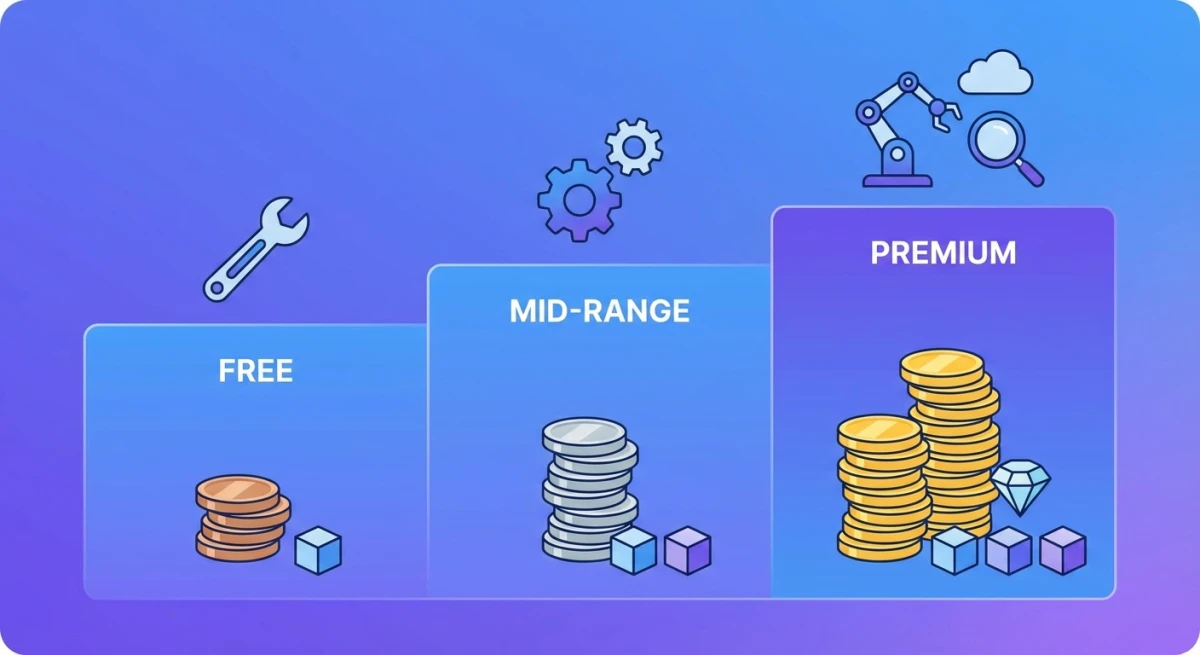
Top Pick: Best All-in-One Screenshot App for Mac
1. ScreenSnap Pro
Best for: Anyone who wants screenshots, screen recording, and video editing in one app, with no subscription
Price: $34 one-time (lifetime updates)
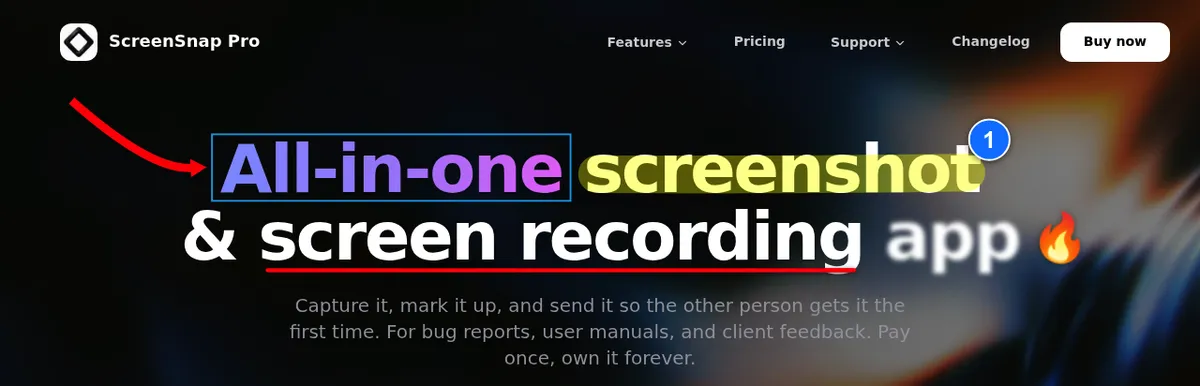
ScreenSnap Pro hits the sweet spot. One payment. Lifetime access. No monthly fees. It earns the top spot because it covers the most ground for one price. It is an all-in-one screenshot tool: capture, markup, recording, and editing all live in one app.
Core features:
- Area, window, full-screen, and delayed capture, plus Area to Editor
- 17 annotation tools: arrows, shapes, text, callouts, step counter, magnifier, spotlight, highlighter, and more, plus emoji
- 500+ backgrounds with padding and shadow
- Blur and pixelate options
- OCR text extraction
- Pin screenshots on screen
- Full-page website capture from a URL
- Screen recording to MP4 at up to 60fps, with webcam, mic, and system audio
- Direct GIF recording
- Optional cloud share links for quick sharing
What sets it apart:
- One-time price. No subscriptions ever, and updates are included
- Video editor built in. Trim, split, cut, and speed up clips on a multi-track timeline. Remove silences in one click, and add auto zoom that follows your cursor
- Beautiful backgrounds. Perfect for social media
- GIF recording. No video conversion needed
- Mac and Windows. One license covers two computers, in any mix
- Zero watermarks. Clean, pro output
Limitations:
- No scrolling capture inside app windows (full web pages are covered by URL capture)
- No captions or subtitles in the video editor
- No live streaming
- No team workspaces or browser extension
- Needs macOS 15 or later
Verdict: Best value for serious screenshot users. You get a full screenshot editor, a screen recorder for Mac, and a video editor for one payment, backed by a 30-day money-back guarantee. The backgrounds save tons of time on social content. No recurring costs. See ScreenSnap Pro pricing.
Free Tier: No Cost, Solid Features
2. macOS Screenshot (Built-in)
Best for: Casual users who need basic captures
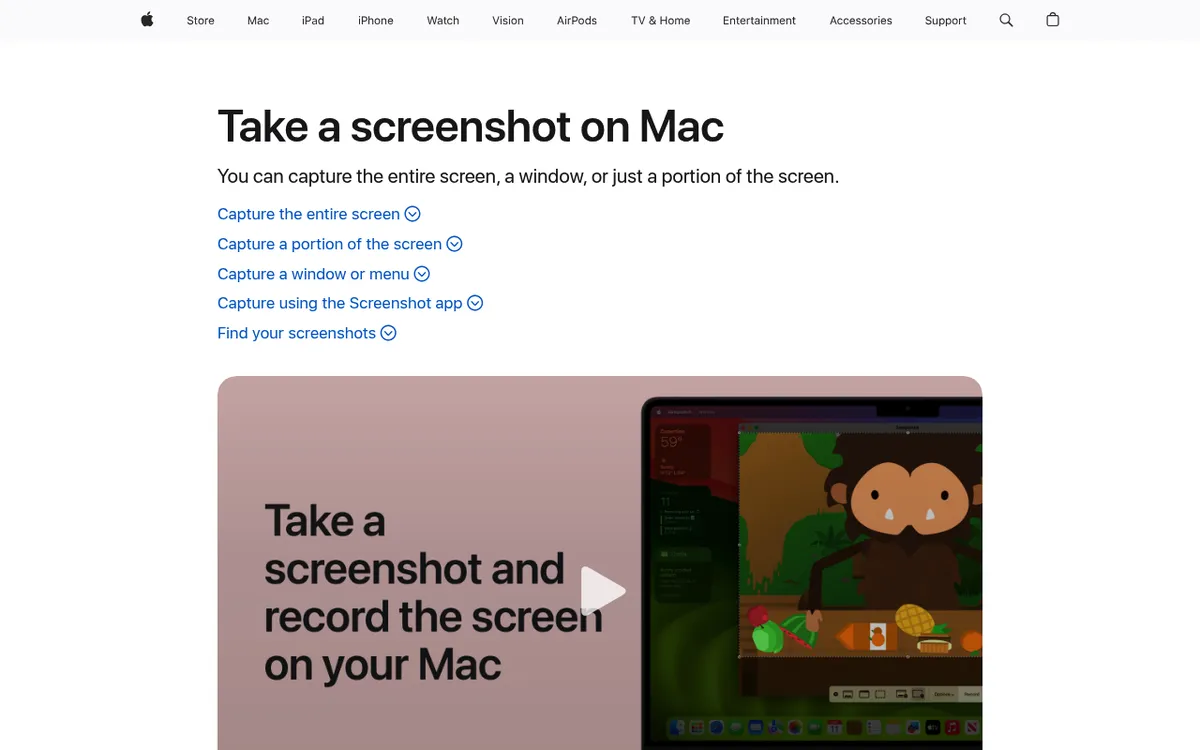
Every Mac has Screenshot built in. Apple's tool is simple and free. Press ⌘ + Shift + 5 to open it, or use these shortcuts:
⌘ + Shift + 3: Capture full screen⌘ + Shift + 4: Capture a region⌘ + Shift + 4 + Space: Capture a window
What it does well:
- Works right away on any Mac
- Pairs with Preview for basic edits
- Records video (not GIFs)
- Supports clipboard with
Control - Syncs to iCloud
What's missing:
- No GIF recording
- No scrolling capture
- No cloud sharing
- Saves to Desktop by default
- Can't hide desktop icons
Verdict: macOS Screenshot is fine for basic use. Take a few shots per week? It's enough. Need more? Try third-party tools.
3. Shottr
Best for: Developers and designers who need power tools
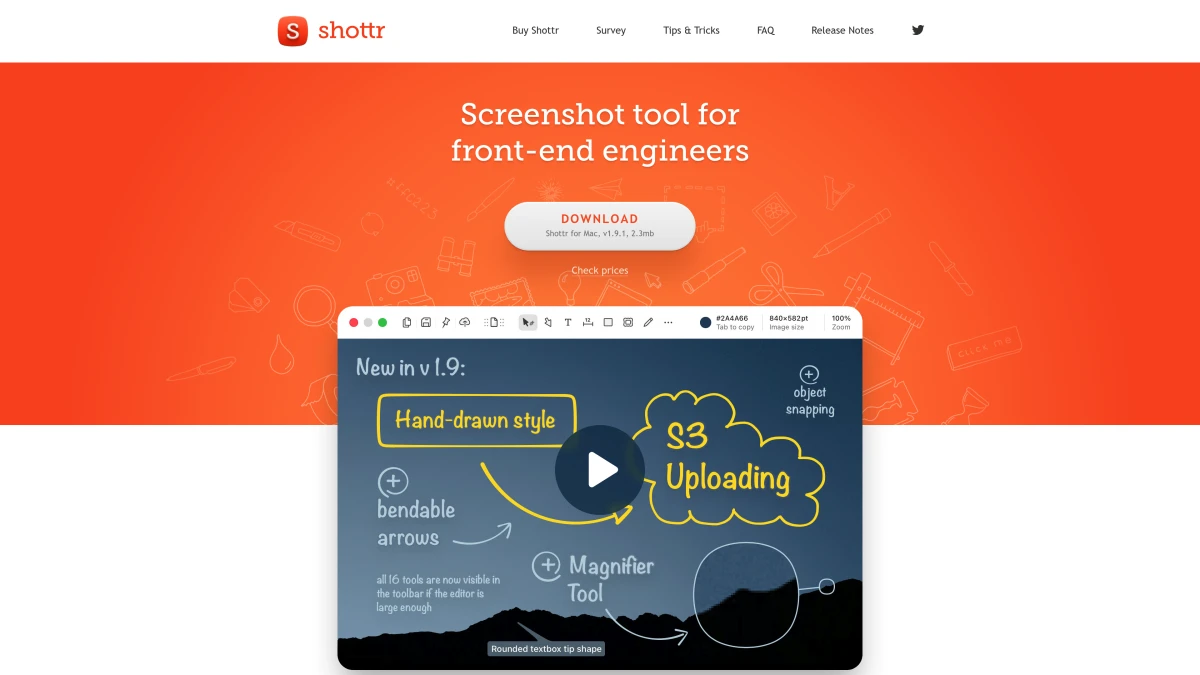
Shottr is a free tool made for power users. It's fast and packed with features that cost money elsewhere.
Top features:
- Pixel ruler. Measure UI elements
- OCR. Copy text from images
- Scrolling capture. Grab long pages
- Color picker. Sample colors from screen
- Beautify mode. Add backgrounds
Annotation:
- Arrows and shapes
- Text and blur
- Pixelation and highlights
- Great for pro-level work
Price: Free to use, with upgrade prompts after 30 days. Commercial use needs the $12 one-time Basic license, and the Friends Club tier is $30. Optional S3 upload needs setup.
Verdict: Shottr covers a lot of ground for a free tool. OCR, scrolling capture, and annotation all come free. The main gap? No GIF or video recording.
4. Lightshot
Best for: Quick captures with instant sharing
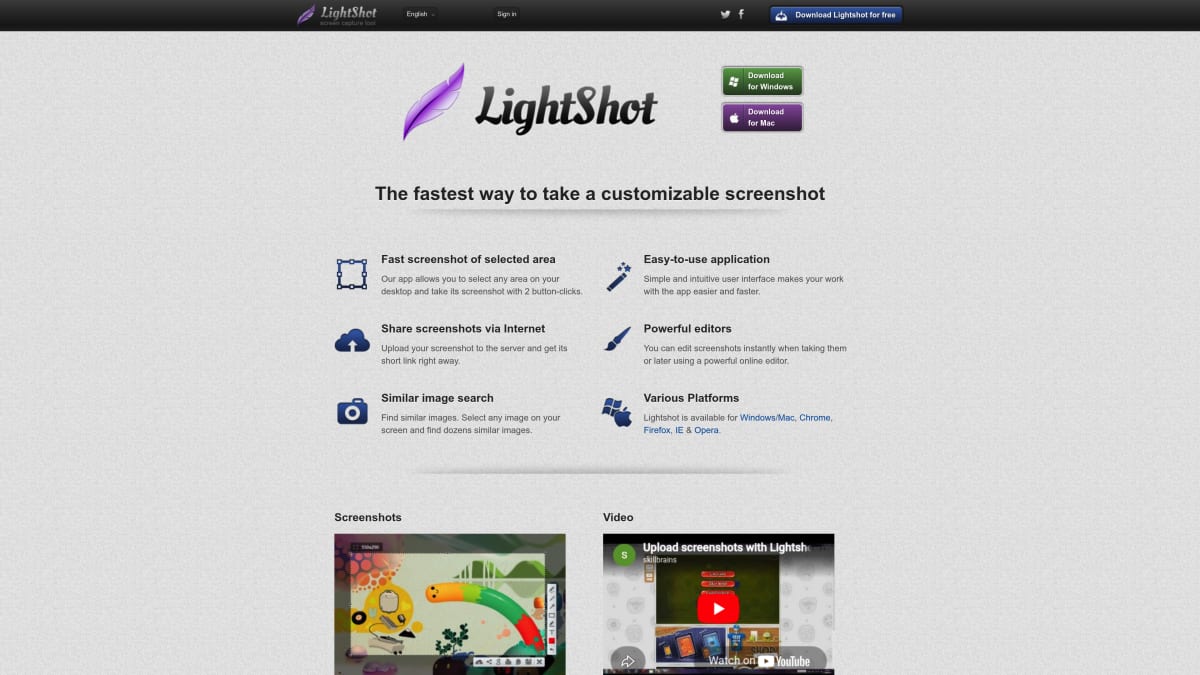
Lightshot is built for speed. Capture, edit, and share in seconds. It works on Mac, Windows, and browsers. See also: Lightshot alternatives.
Key features:
- Region capture with resize
- Basic editing (shapes, text, arrows)
- Instant upload to Lightshot servers
- Browser add-ons for Chrome and Firefox
- Quick successive shots
- Similar image search
Privacy note:
Every upload to prnt.sc is public. Anyone with the short link can open it, and uploads can't be made private. Don't use it for private content.
Limits:
- No window capture mode (region and full screen only)
- No scrolling capture
- No GIF or video
- Limited annotation
- Sharing relies on public links
Verdict: Lightshot is the fastest way to capture and share. Great for quick bug reports. Skip it for private or polished work.
Mid Tier: Freemium With Paid Upgrades
5. Monosnap
Best for: Users who want free basics with upgrade options
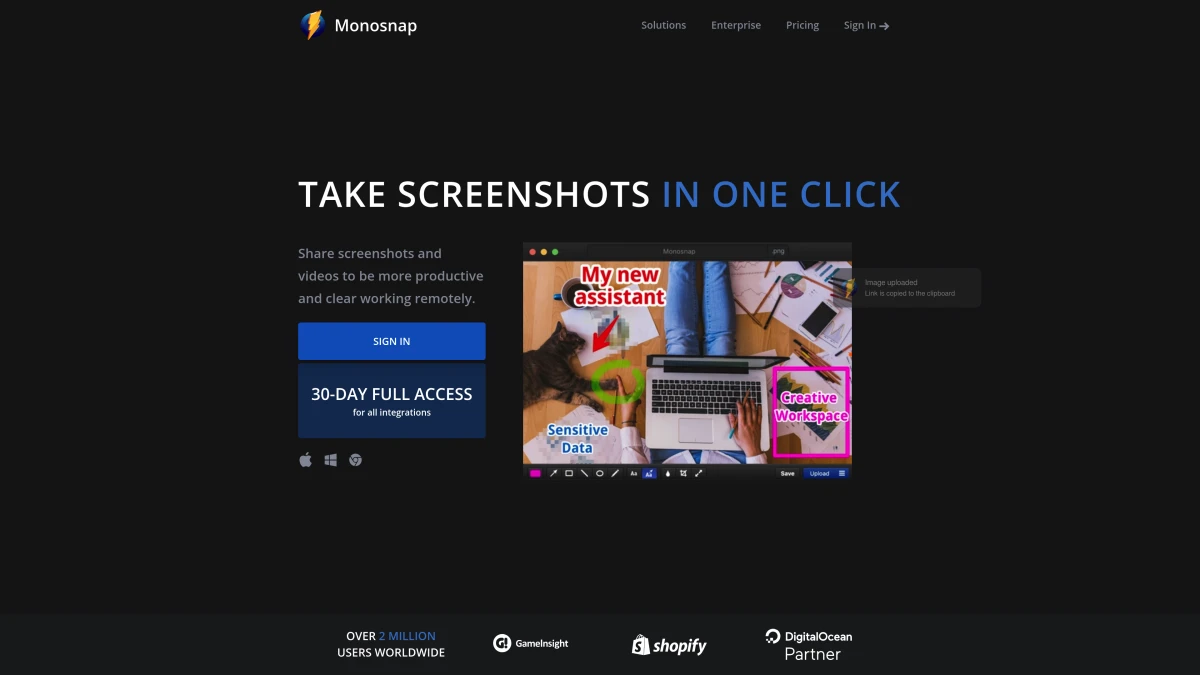
Monosnap mixes free and paid well. Most features are free. Pay for extras if you need them.
Free tier (non-commercial use only):
- Screenshots and video (up to 5 minutes)
- 8x zoom for precise selection
- Annotation with blur
- 2GB cloud storage
- YouTube upload
Paid (from $3/month, or $30/year):
- More cloud storage (from 10GB)
- Unlimited video length
- Third-party integrations like Dropbox, Google Drive, and S3
- Commercial plans with team features start at $10/month
Verdict: The free tier covers most personal needs. Pay if you use it for work or your team needs shared storage.
Premium Tier: Professional Tools
6. CleanShot X
Best for: Power users who need every feature
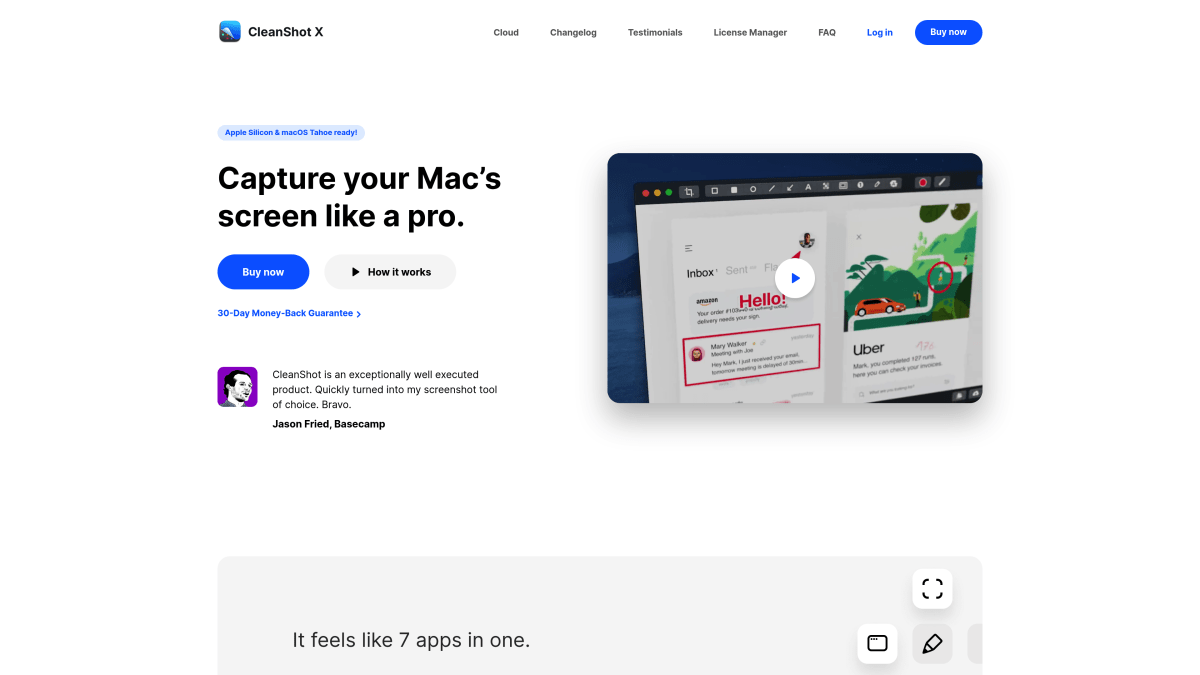
CleanShot X covers screenshots, GIFs, video, annotation, and cloud. Looking for options? See our CleanShot X alternatives.
Full feature set:
- All capture modes (full, window, region, scrolling)
- GIF and video recording
- Video editor with Smart Zooms (new in version 5.0)
- Hide desktop icons
- A wide annotation toolkit (arrows, shapes, counter, blur, spotlight)
- CleanShot Cloud with stats
- Freeze screen for precise shots
- Self-timer
- Recent captures history
Pricing:
- $35 one-time (Basic): Mac app, 1 year of updates, 1GB of Cloud storage
- $10 per user/month, billed yearly (Pro): unlimited Cloud and team features
- Also on Setapp, the Mac app subscription
vs ScreenSnap Pro:
Both do screenshots, GIFs, screen recording, annotation, and video editing. CleanShot X adds scrolling capture. ScreenSnap Pro adds 500+ backgrounds, full-page website capture, a Windows version, and lifetime updates for one payment. CleanShot's $35 license covers one year of updates, and unlimited Cloud needs the Pro plan.
Verdict: CleanShot X is a capable, feature-heavy option. Get it if you need max features. Consider Setapp if you use other Mac apps. Just budget for cloud costs.
7. Snagit
Best for: Teams on Mac and Windows
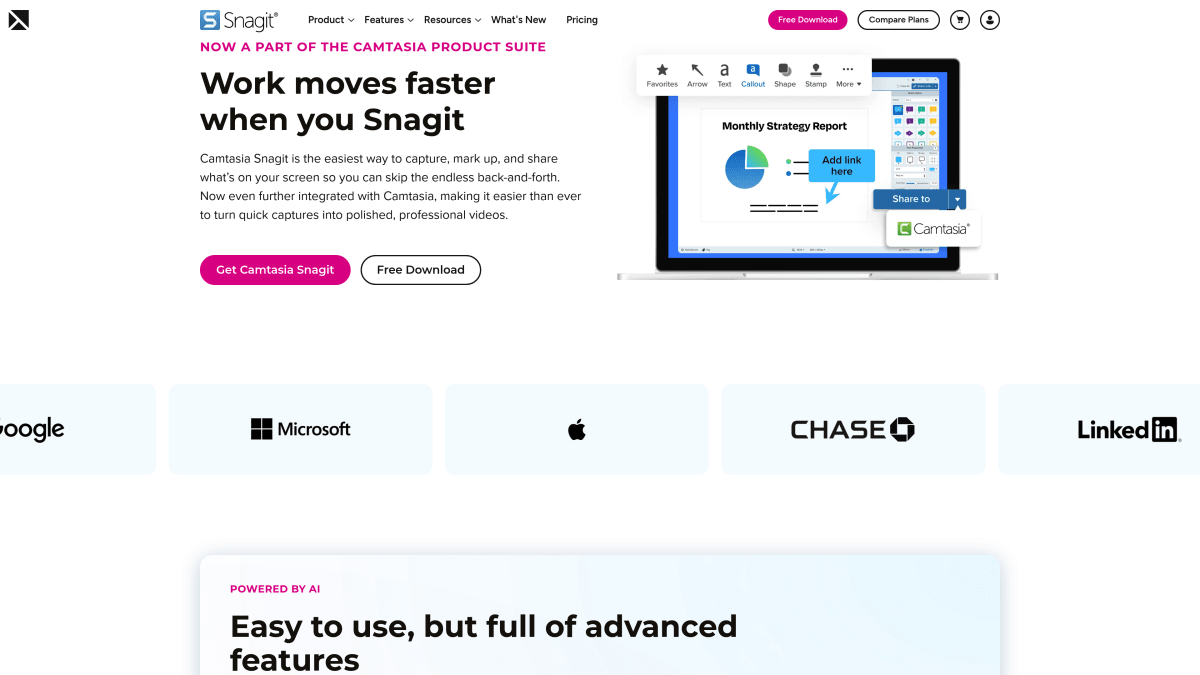
Snagit has been around for over 30 years. It works on Mac and Windows. That's why IT teams pick it. See also: Snagit alternatives.
Enterprise features:
- Import from scanners and cameras
- Scrolling capture
- Video with webcam overlay
- OCR text extraction
- Microsoft 365 and Slack integrations
- Templates for docs
- Video trimming
Downsides:
- $39 per user per year, and it's subscription only since Snagit 2025
- Feels bloated on Mac
- Can lag on older Macs
- Not built for macOS design
Verdict: Snagit works for cross-platform teams. Mac-only users will find lighter, cheaper tools that feel more native.
Specialty Tools: Focused Excellence
8. Kap
Best for: Developers making GIFs
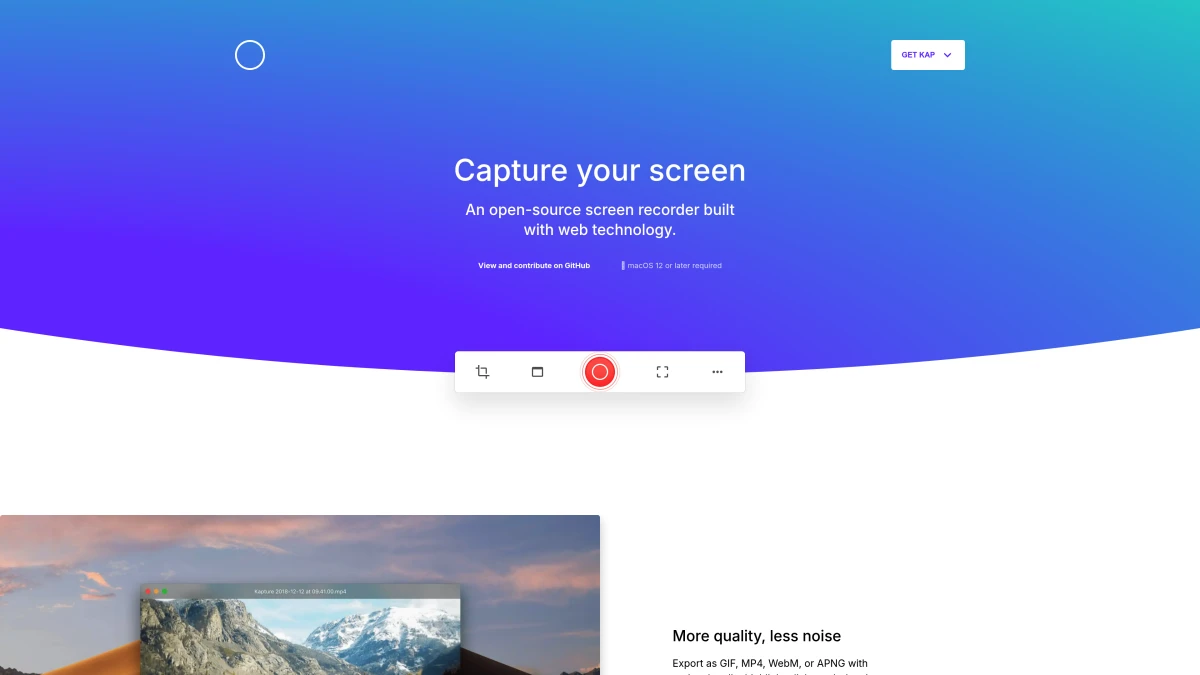
Kap does one thing great: GIF recording. It's open-source and free. Updates have slowed, though. The latest release (version 3.6.0) came out in October 2022, and it needs macOS 12 or later.
GIF features:
- Menu bar access
- Export to MP4, GIF, WebM, APNG
- Plugins for Giphy, Streamable, and Vercel
- Custom frame rate and quality
- Trim before export
What it doesn't do:
- No screenshots
- No annotation
- No cloud hosting
- Few updates since 2022
Verdict: Need GIFs for docs or social? Kap is perfect. Pair it with Shottr for full coverage.
9. Xnapper
Best for: Making screenshots beautiful
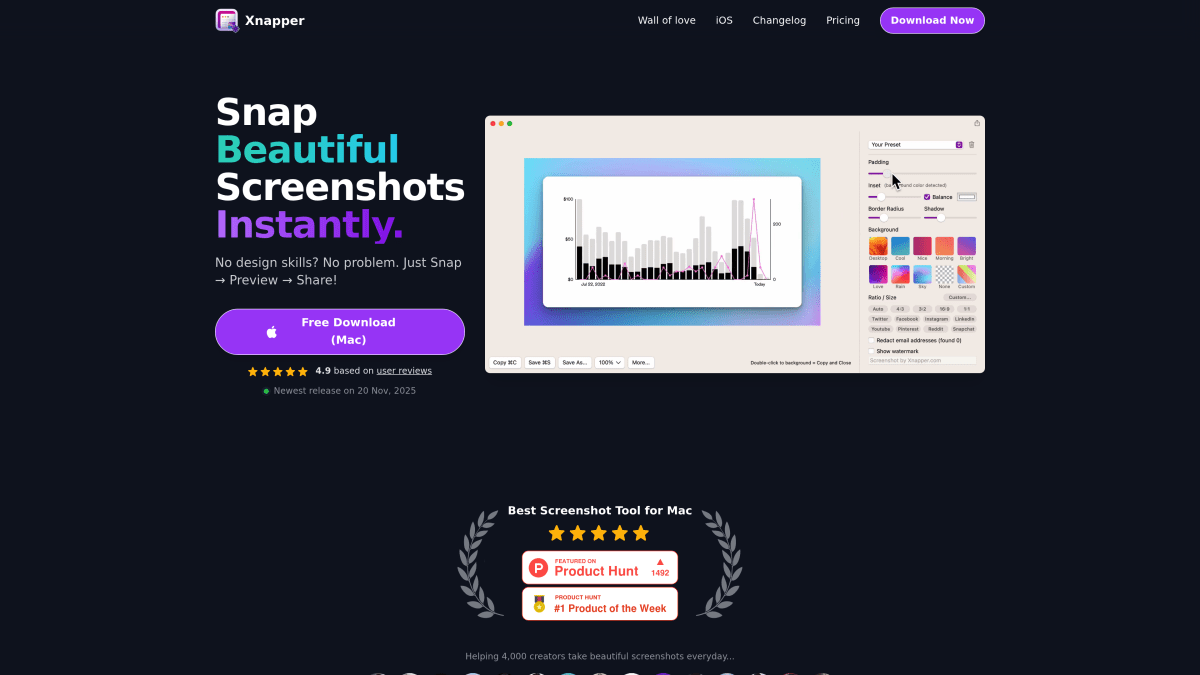
Xnapper focuses on looks. It adds device frames, backgrounds, and shadows.
Key features:
- Auto device mockups (MacBook, iPhone)
- Gradient and image backgrounds
- Shadow and padding controls
- Auto-redact private info
- Batch processing
Limits:
- No GIF or video
- Limited annotation
- The free version adds a watermark. Removing it costs $29.99 one-time for one Mac, with 1 year of updates
Verdict: Xnapper shines for public sharing. Great for Twitter, docs, or marketing. It adds to capture tools rather than replacing them.
10. Skitch by Evernote
Best for: Quick markup with Evernote sync
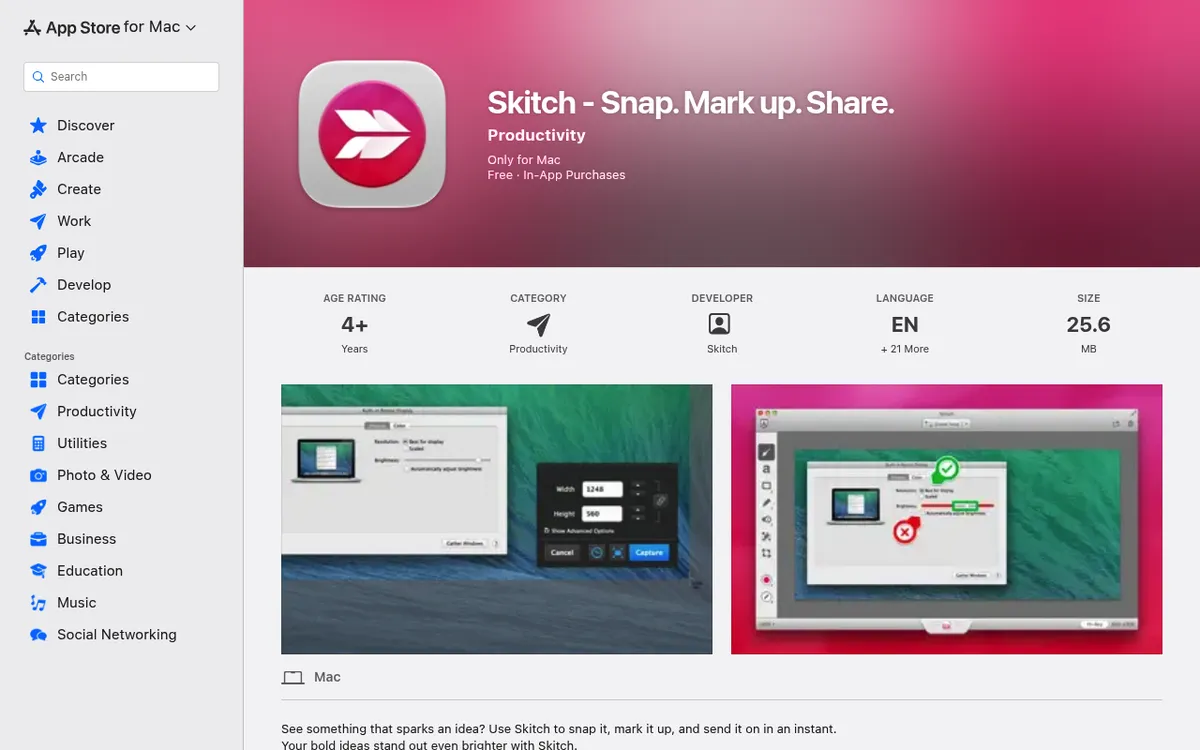
Skitch is simple and free on the Mac App Store. Evernote bought it in 2011. It's now a legacy app: the last update (version 2.9) came out in July 2020, and Evernote dropped the Windows and mobile versions in 2015. See also: Greenshot alternatives.
Core features:
- Region, window, and full-screen capture
- Arrows, shapes, callouts, blur
- 8 export formats
- Evernote sync
- AirDrop and Notes sharing
- Webcam selfies
What works:
Skitch is fast for quick markup. The arrows stand out. Evernote users get auto-sync.
What's dated:
- No scrolling capture
- No GIF or video
- Old interface
- No updates since 2020
- PDF markup needs Evernote Premium
- No eraser tool
- No OCR
Verdict: Skitch is fine for Evernote fans. But newer free tools like Shottr offer way more.
Feature Comparison Table
| Feature | ScreenSnap Pro | macOS | Shottr | Lightshot | CleanShot X | Snagit |
|---|---|---|---|---|---|---|
| Price | $34 | Free | Free / $12 | Free | $35+ | $39/yr |
| Pricing Model | One-time | Free | Free + one-time | Free | One-time or subscription | Subscription |
| Screen Recording | ✅ (MP4) | ✅ (MOV) | ❌ | ❌ | ✅ | ✅ |
| Video Editor | ✅ | Trim only | ❌ | ❌ | ✅ | Basic |
| GIF Recording | ✅ | ❌ | ❌ | ❌ | ✅ | ✅ |
| Scrolling Capture | ❌ | ❌ | ✅ | ❌ | ✅ | ✅ |
| OCR | ✅ | ❌ | ✅ | ❌ | ✅ | ✅ |
| Backgrounds | 500+ | ❌ | Basic | ❌ | Basic | ❌ |
| Annotation Tools | 17 | Basic | 10+ | 5 | Full set | Full set |
| Cloud Sharing | ✅ | ❌ | S3 only | ✅ | ✅ (1GB on Basic) | ✅ |
| Windows Support | ✅ | ❌ | ❌ | ✅ | ❌ | ✅ |
Which Screen Capture Tool Should You Choose?
Pick based on your workflow:
Want screenshots, recording, and editing in one app:
ScreenSnap Pro is the best all-rounder. You get 17 annotation tools, 500+ backgrounds, and a screen recorder with a built-in video editor, all for one $34 payment.
Casual user taking occasional shots:
Start with macOS Screenshot. It's free and built in. Outgrow it? Try Shottr.
Developer or designer needing precision:
Shottr is your free pick. Pixel ruler, OCR, and scrolling capture cover most needs.
Digital marketer making visual content:
ScreenSnap Pro offers the best value. 500+ wallpapers make social posts easy. One-time price means no fees.
Need GIFs for docs or tutorials:
ScreenSnap Pro records GIFs directly, right next to your screenshots. For a free option, Kap is tops for GIF creation. Pair it with Shottr for static shots.
Want every feature:
CleanShot X has it all. Budget for cloud costs if you need sharing.
Team on Mac and Windows:
Snagit gives cross-platform consistency. Mac users may prefer native tools though. If it's just you on a Mac and a PC, one ScreenSnap Pro license covers both.
Frequently Asked Questions
Final Thoughts
The best screen capture tool depends on your goals.
For most people, ScreenSnap Pro is the pick. It handles screenshots, markup, screen recording, and video editing in one app for a one-time $34. Free tools like Shottr cover many needs. Premium tools like CleanShot X work for power users who need everything.
Want to start free? Many users find Shottr handles a large share of their work. When you need GIFs, recording, or polished backgrounds, upgrade to match your needs. See ScreenSnap Pro pricing.
Whatever you pick, the goal stays the same: capture your screen, make it look good, and share it fast.
This guide is the price-sorted directory: our top pick first, then 9 more tools sorted by price, free built-ins included, so you can see the whole market at a glance. If you would rather read one hands-on head-to-head, our 8 Mac screenshot apps tested on the same captures puts the shortlist through identical tasks instead.

Morgan
Indie DeveloperIndie developer, founder of ScreenSnap Pro. A decade of shipping consumer Mac apps and developer tools. Read full bio
@m_0_r_g_a_n_